Troubleshooting Audio Detection
Start with the Input meter at the right of the stage. It shows the left and right levels of what SYQEL hears (a mono source, such as a single microphone, shows one bar).
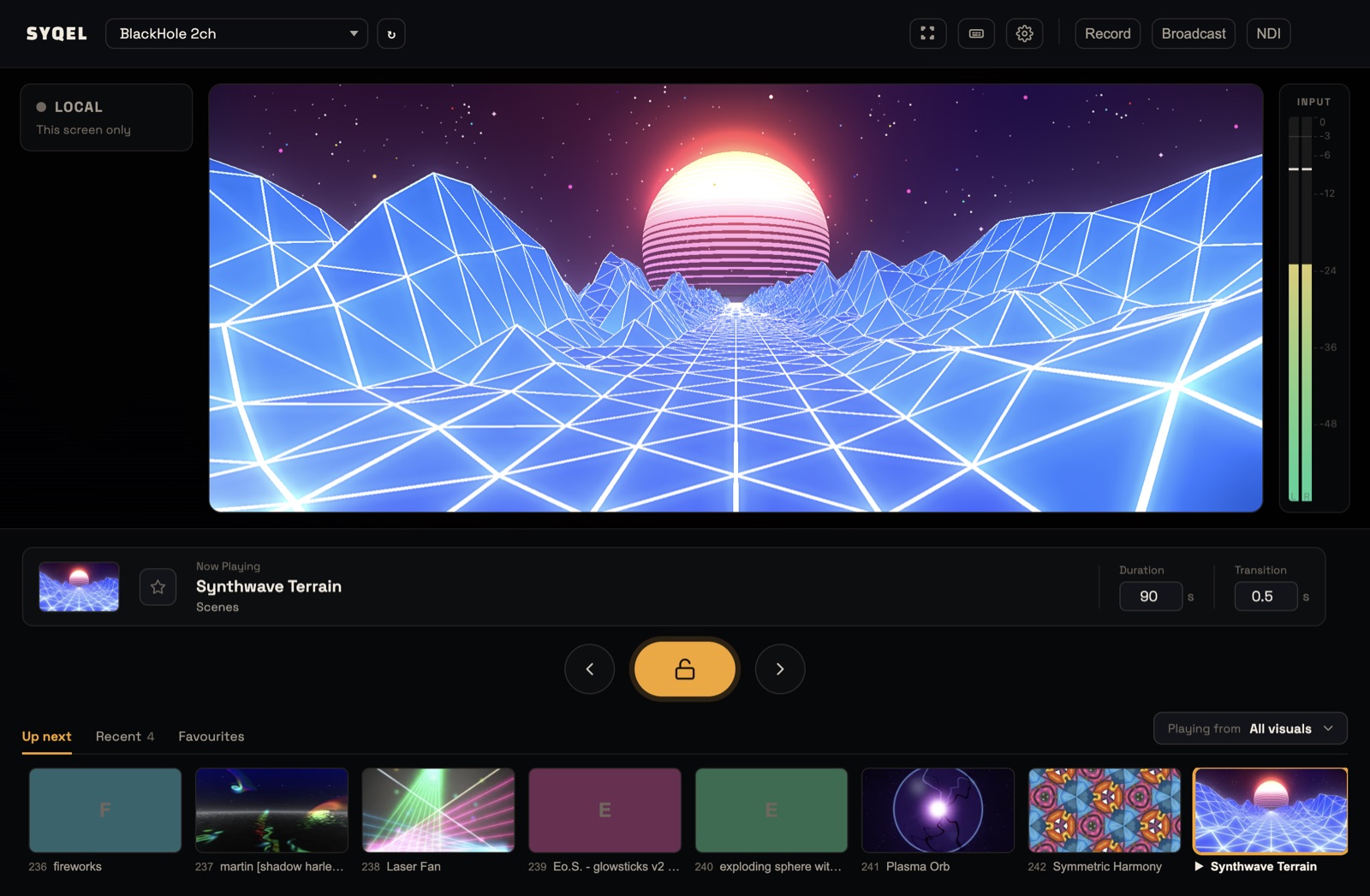
- The meter moves: SYQEL hears you. If the visuals still look flat, check your settings in Settings › Frequency Reactiveness.
- The meter stays still: SYQEL hears nothing. Work through the fixes below.
”No audio is reaching the app”
This warning appears on the stage when a visual from the Shaders feed is playing and SYQEL has heard silence for a few seconds. Shaders are drawn entirely from sound, so they stay dark without it. Other feeds keep moving on their own, which can hide the same problem.
The warning calls these visuals “ThreeJS” and tells you to check Settings › Audio. There is no such screen: your audio source is picked in the list at the left of the top bar. If it says no input is selected, SYQEL is using your default microphone; pick your music source instead.
Fixes
- Play some music first. In SYQEL Desktop, an app appears as App Audio: followed by its name only while it is playing sound.
- Click the refresh button (↻) next to the audio source list. New apps and devices don’t appear on their own.
- Check you picked the right source. Open the list and look for the tick.
- Restart the music app, then pick it again. If you see “Not capturing from the selected app. Start playback in it, then reselect it as the source.”, do exactly that.
- Check permissions.
- Mac, App Audio or System Audio: turn SYQEL on in System Settings › Privacy & Security › Screen & System Audio Recording, then pick the source again.
- Mac, microphone: turn SYQEL on in System Settings › Privacy & Security › Microphone, then relaunch SYQEL.
- Web: allow microphone access for vj.syqel.com in your browser, then reload.
- Windows and ASIO. If your DAW or DJ software plays through an ASIO driver, SYQEL can’t hear it with App Audio. Switch that app to a Windows driver, or use a virtual audio device.
- Using a virtual device? Make sure your music app’s output is set to it, and that SYQEL is listening to it.
- Restart SYQEL.
Other messages you might see
- “App Audio (Requires macOS 14.4+)” or “App Audio (Requires Windows 10 build 19041+)”: your system is too old for App Audio. Use a virtual audio device, or on Windows pick your speakers or headphones.
- “Audio engine failed to load”: SYQEL Desktop has fallen back to microphone input. Restart the app; if it keeps happening, reinstall it from the download page.
- “Audio capture stopped”: pick your source again in the list.
In the web app
The web app hears only a microphone or an audio input, not other apps or browser tabs. For music playing on your computer, use a virtual audio device or SYQEL Desktop.
Still stuck? Contact SYQEL support and tell us your system, your audio source and what the Input meter shows.
Did this help? If you’re still stuck, email support@syqel.com.