How to Connect Any App’s Audio to SYQEL
SYQEL Desktop can listen to any app directly, including Spotify, Apple Music, your browser, DAWs and DJ software. No virtual audio device is needed.
In SYQEL Desktop
- Open the app you want to visualize and start playing.
- In SYQEL, open the audio source list at the left of the top bar.
- If the app isn’t listed, click the refresh button (↻) next to the list.
- Pick App Audio: followed by the app’s name, for example App Audio: Spotify.
- On a Mac, the first time you do this, macOS asks for permission. Allow it.
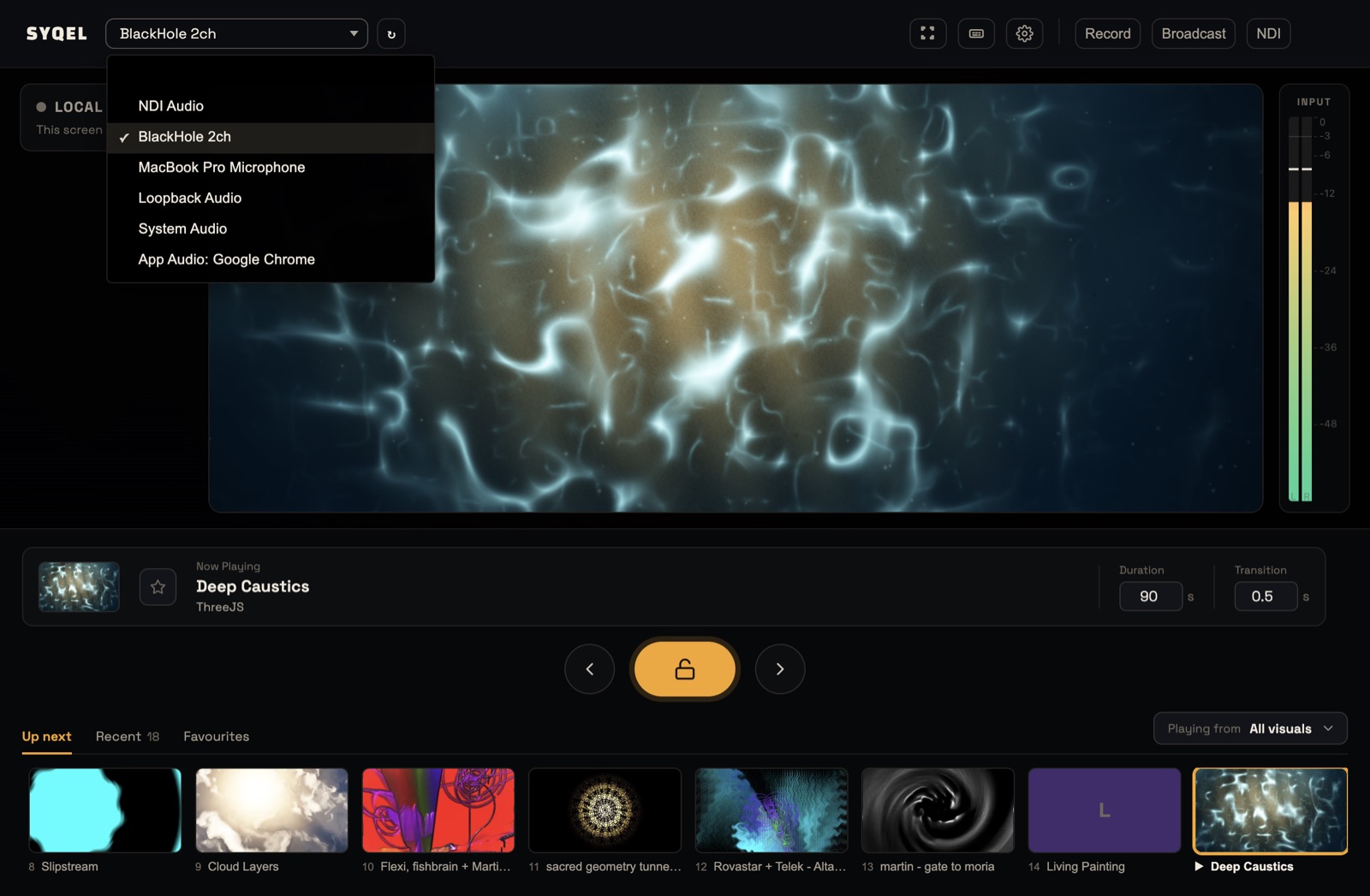
To visualize everything your computer plays instead of one app, pick System Audio on a Mac, or your speakers or headphones on Windows.
Requirements: macOS 14.4 or later, or Windows 10 build 19041 or later. On older systems, use a virtual audio device (Mac, Windows).
Tips
- An app appears only while it is playing sound. Start playback first, then refresh.
- If you restart the app, pick it again in the list.
- On Windows, an app that plays through an ASIO driver can’t be heard this way. Switch the app to a Windows driver (such as WASAPI), or use a virtual audio device.
In the web app
A browser can only hear a microphone or an audio input, not other apps or tabs. Route the app through a virtual audio device and pick that device in SYQEL. See Creating a virtual audio input.
Related guides
Did this help? If you’re still stuck, email support@syqel.com.