How to Set Up SYQEL in OBS on Mac
On a Mac you no longer need Loopback to stream SYQEL. SYQEL Desktop can hear your music apps directly and send clean visuals to OBS.
You need SYQEL Desktop and OBS.
1. Give SYQEL your music
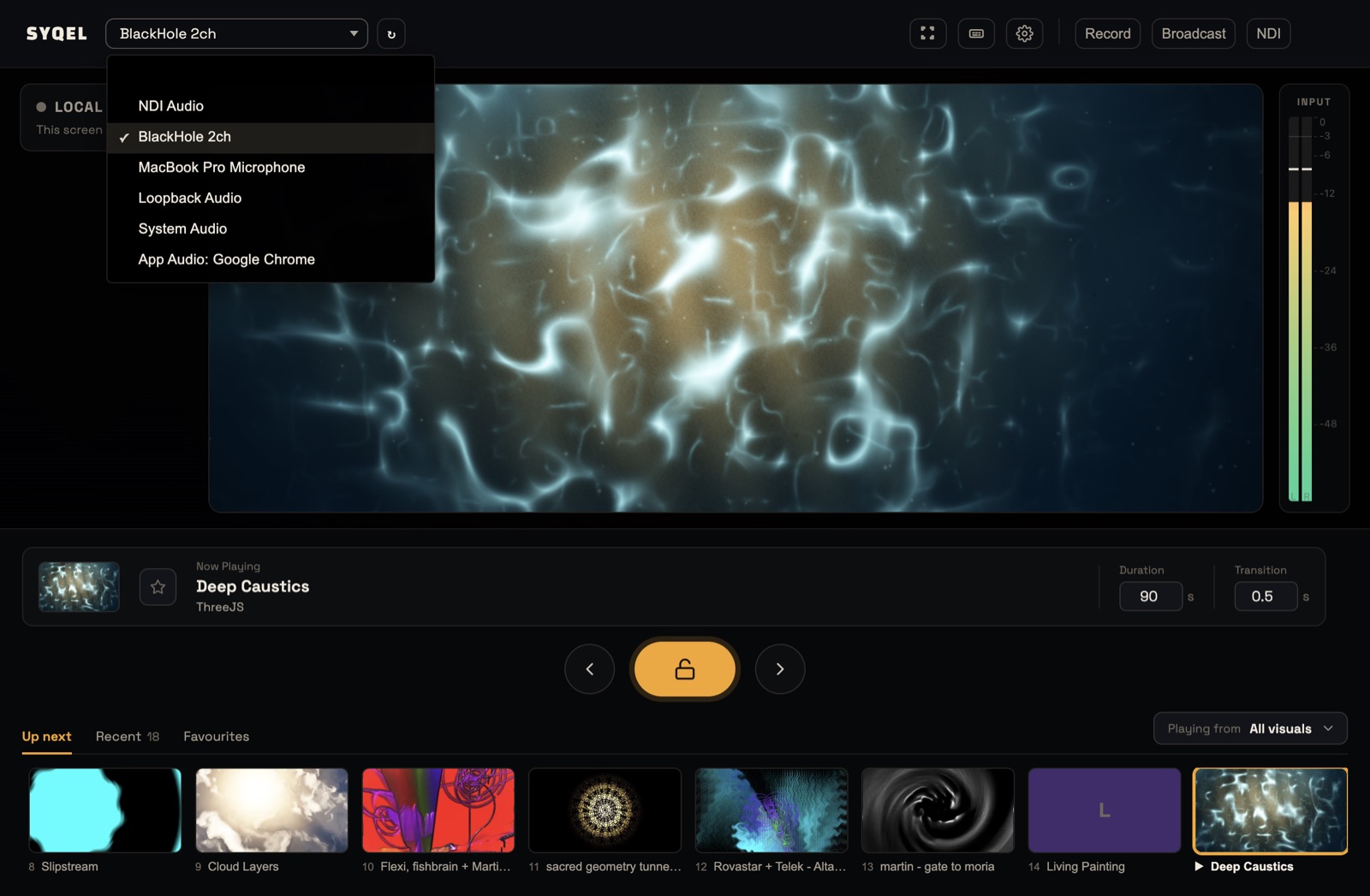
In SYQEL’s top bar, open the audio source list and choose:
- App Audio: followed by the app’s name for one app, such as Spotify, Rekordbox or Serato, or System Audio for everything the Mac plays. This needs macOS 14.4 or later. The first time, macOS asks for permission; if you said no, allow SYQEL in System Settings › Privacy & Security › Screen & System Audio Recording, then pick the source again.
- Or your microphone or audio interface.
On macOS older than 14.4, use a virtual device such as BlackHole or Loopback instead: see Creating a virtual audio input – Mac.
2. Send the visuals to OBS
Option A: NDI (recommended)
- Click NDI in SYQEL’s top bar.
- In OBS, install the NDI plugin (DistroAV, formerly OBS-NDI) if you haven’t.
- Under Sources, click + → NDI Source, and choose SYQEL Desktop.
Option B: Window capture
- Press B or click Broadcast. SYQEL opens a SYQEL Visuals window with only the visuals, your logo and marquee in it.
- In OBS, click + → macOS Screen Capture (or Window Capture in older OBS), set it to capture a window, and choose SYQEL Visuals.
- Right-click the source → Transform → Fit to screen.
Leave the SYQEL Visuals window open; closing it turns Broadcast and NDI off. It keeps rendering behind other windows. SYQEL on Mac has no Syphon output.
Can’t see the window in OBS? See I can’t find SYQEL as a window source in OBS on macOS.
3. Audio in OBS
The visuals reach OBS without sound. Add your music to OBS as its own audio source. See Setting up OBS audio source.
On Free, the SYQEL logo is always on the output. A subscription removes it and lets you show your own; see pricing.
Did this help? If you’re still stuck, email support@syqel.com.