Audio Sources in SYQEL Desktop
Pick what SYQEL listens to in the audio source list at the left of the top bar. You can switch at any time without stopping the visuals, and SYQEL remembers your choice.
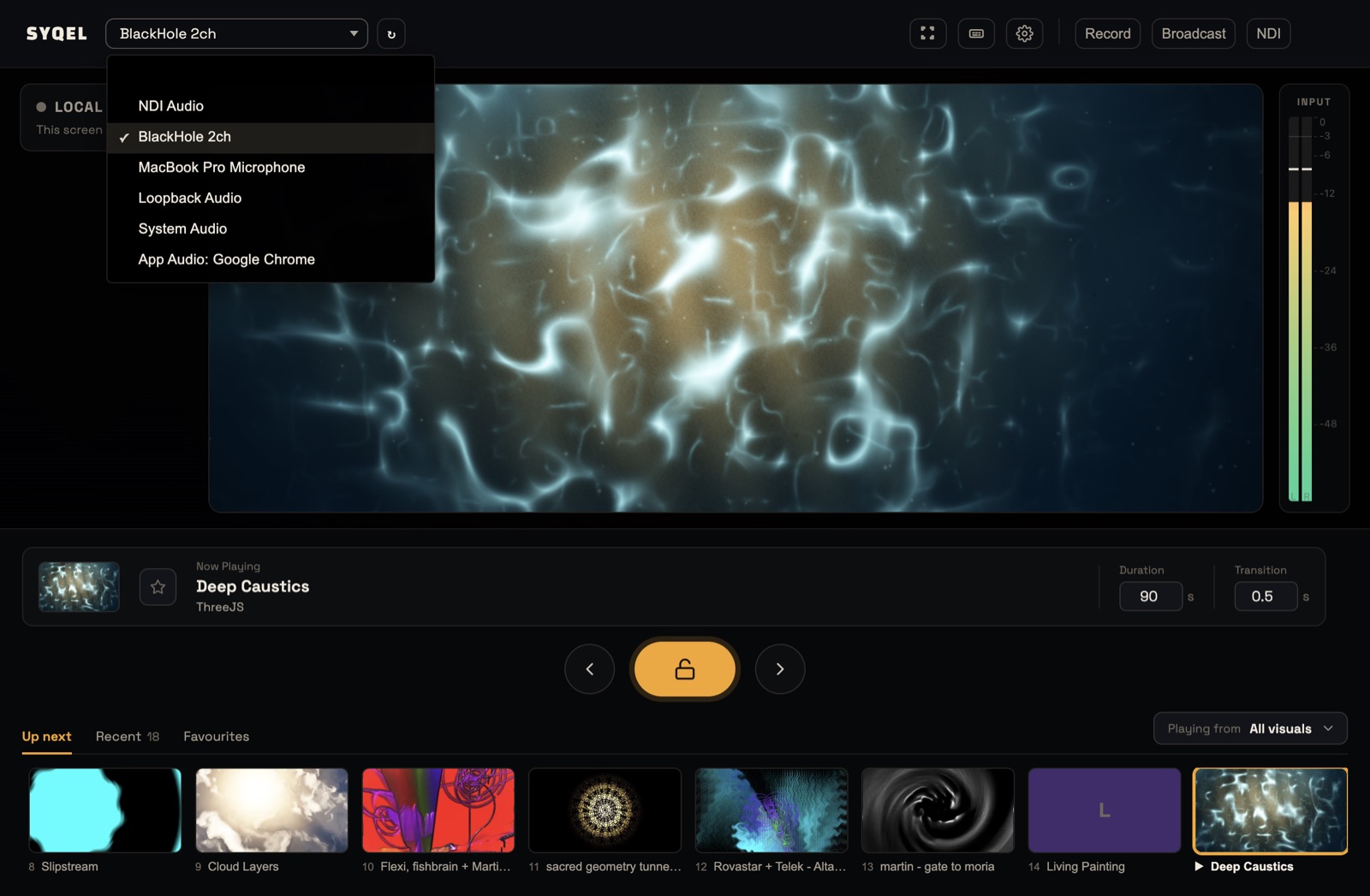
What’s in the list
- Microphones and audio interfaces, by their device name.
- App Audio entries, such as App Audio: Spotify: one app’s sound, whether it’s a music player, your browser, a DAW or DJ software. Each app that is playing sound gets its own entry. No virtual cable is needed.
- System Audio (Mac): everything your Mac is playing.
- Your output devices (Windows), such as your speakers or headphones, by their own name. Picking one captures everything playing through it.
- Any virtual audio devices you have installed, such as BlackHole, Loopback or VB-Cable.
An app shows up only while it is playing sound. If you start an app after SYQEL, play something in it, then click the refresh button (↻) next to the list.
Requirements
- Mac: App Audio and System Audio need macOS 14.4 or later. On older versions the list shows “App Audio (Requires macOS 14.4+)”; use a virtual audio device instead.
- Windows: App Audio needs Windows 10 build 19041 or later. On older builds the list shows “App Audio (Requires Windows 10 build 19041+)”. You can still pick your speakers or headphones to capture everything the computer plays.
Permissions (Mac)
- The first time you pick App Audio or System Audio, macOS asks for permission. Allow it. If you said no, turn SYQEL on in System Settings › Privacy & Security › Screen & System Audio Recording, then pick the source again.
- To use a microphone, SYQEL needs access under System Settings › Privacy & Security › Microphone. If you change this, relaunch SYQEL.
Windows doesn’t ask for permission.
Audio is always captured in stereo. The Input meter at the right of the stage shows the left and right levels of what SYQEL hears.
If the visuals don’t react, see Troubleshooting audio detection.
Did this help? If you’re still stuck, email support@syqel.com.