Adding Logo Watermarks
Put your own logo, a sponsor’s or another DJ’s on the visuals, and switch between them live.
Plans: on Free, the SYQEL logo is always on your output and your own logos can’t be shown. A subscription removes the SYQEL logo and lets you show up to 9 of your own. See pricing.
Add a logo
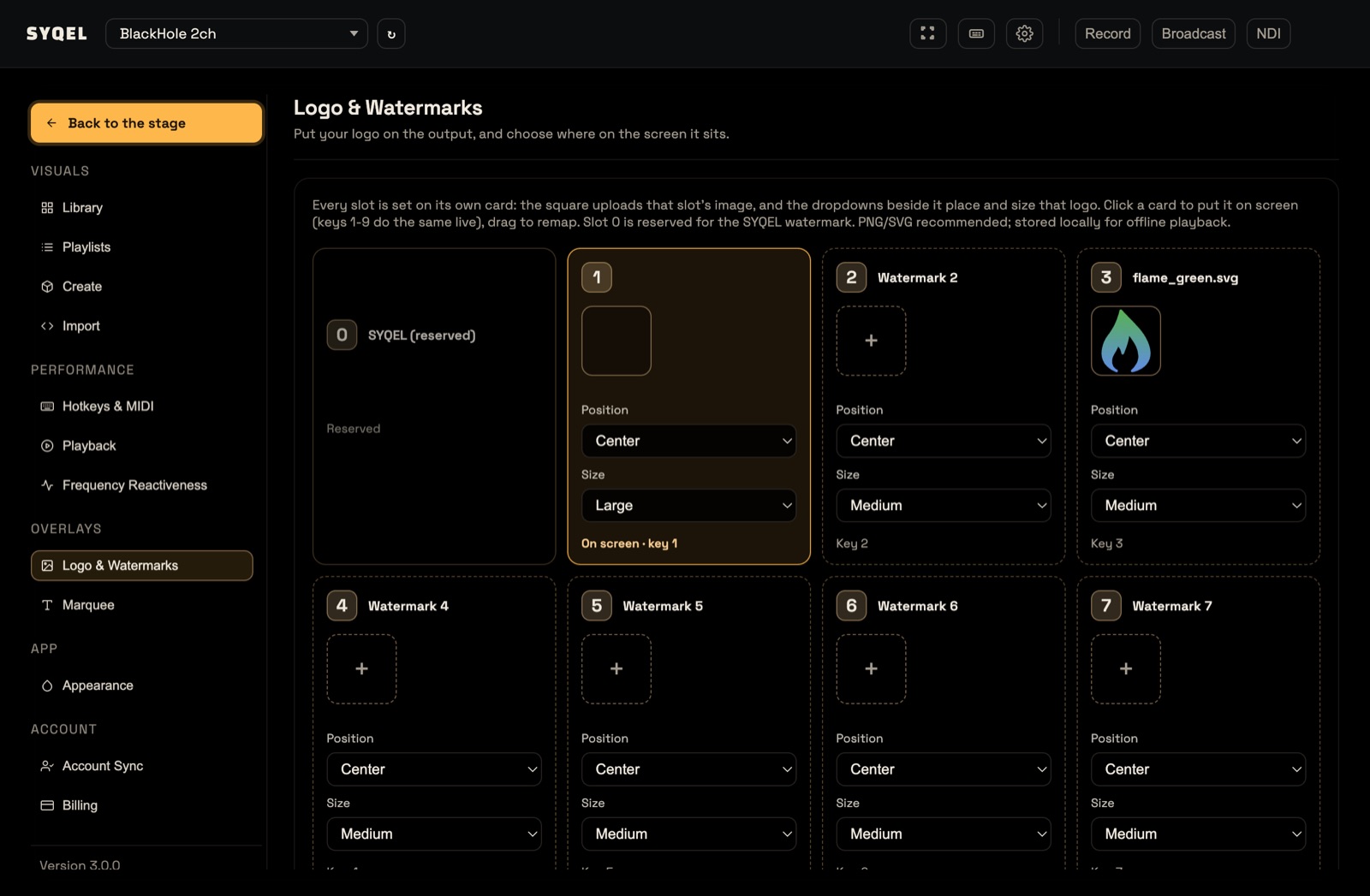
- Open Settings › Logo & Watermarks. There are ten cards: slot 0, SYQEL (reserved), and Watermark 1 to Watermark 9.
- Click the + square on a card and choose an image, or drag an image onto it. Click the square again later to replace it.
- Pick a Position (Top Left, Top, Top Right, Left, Center, Right, Bottom Left, Bottom or Bottom Right) and a Size (Small, Medium or Large).
- Click the card to put that logo on screen. Its footer changes from Key N to On screen · key N.
Changes save as you make them. Your logos are stored on this computer, so they work offline. Drag a card onto another slot to reorder them.
Switch logos during the show
- 1–9 switch straight to that slot’s logo.
- L shows or hides your logo.
You can remap L in Settings › Hotkeys & MIDI or put it on a MIDI pad; the number keys are fixed. Your logo appears on everything SYQEL sends out: Broadcast, NDI and recordings.
Tip: use a high-resolution PNG or SVG with a transparent background.
Did this help? If you’re still stuck, email support@syqel.com.