Quick Start Guide – Web (vj.syqel.com)
SYQEL runs in your browser at vj.syqel.com. It’s the same app as SYQEL Desktop, with nothing to install. This guide gets you from sign-in to a running show, and points you to the detailed articles for each part.
The web app needs an internet connection. Your library loads from your account each time you sign in.
1. Sign in
Go to vj.syqel.com. Choose Continue with Google, Continue with Facebook, or type your email and click Email me a sign-in link. A password is optional. The same account works in the desktop app. More in How do I sign up for a SYQEL account?
The first time, a few short questions and a quick tour follow. Press O any time to replay the tour. Your visuals and playlists sync in on their own.
2. Pick your audio
A browser can only hear a microphone or an audio interface. Open the audio source list at the top left, next to the SYQEL name, pick one, and allow microphone access when your browser asks.
- A microphone hears the room. It’s the quickest way to start.
- An audio interface or mixer line-in gives a clean feed from your decks.
- To visualize music playing on your computer (Spotify, a DJ app, a video), the browser can’t hear it directly. Use SYQEL Desktop, which hears any app with no setup, or route your computer’s sound through a virtual device such as BlackHole or VB-Cable. Virtual devices show in the list with ”— system audio” after their name. See Creating a virtual audio input.
If a device is missing, click ↻ to refresh the list. More in Selecting the audio input and Troubleshooting audio detection.
3. The main screen
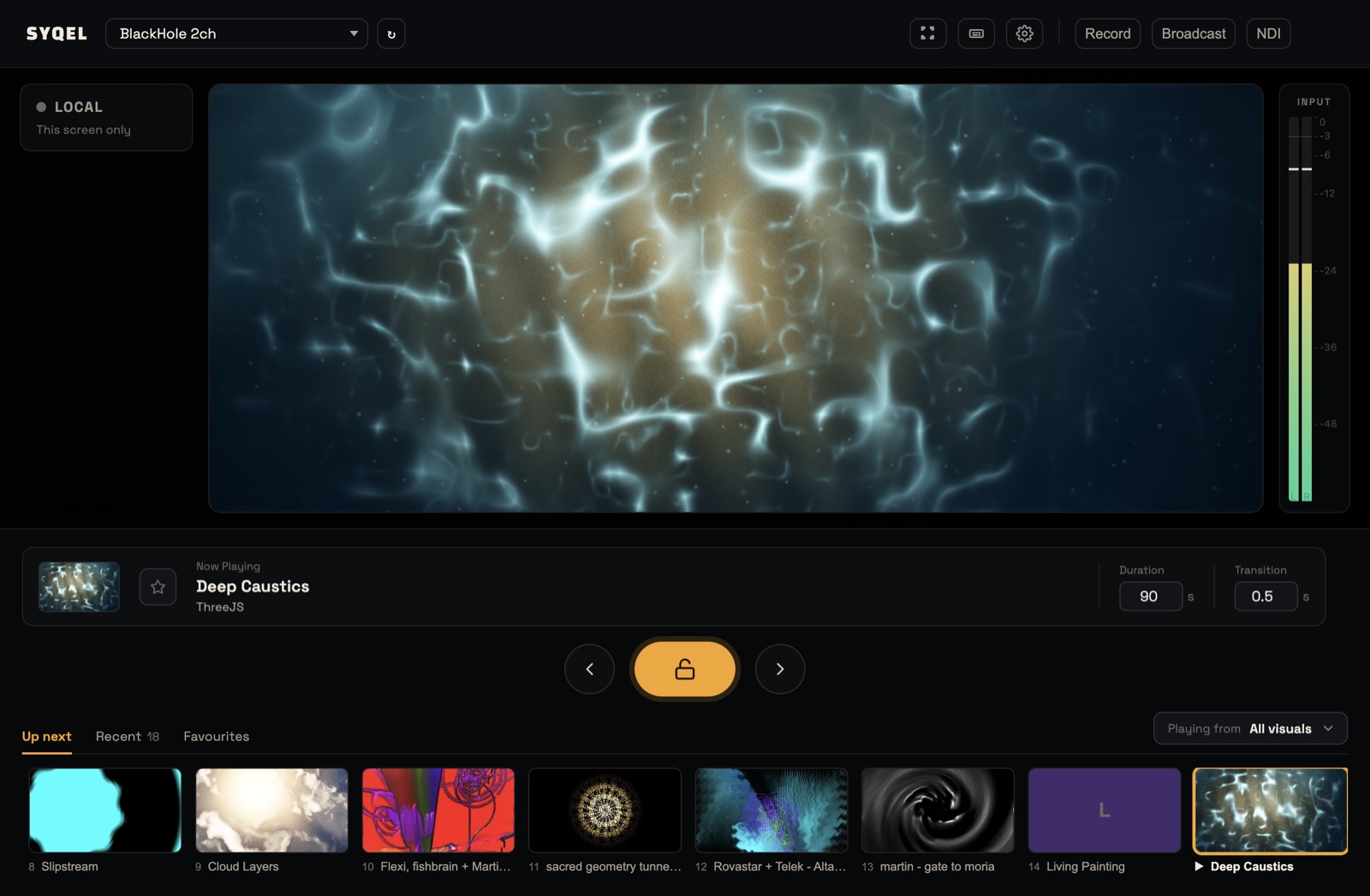
- Stage (centre): the live visual.
- Input meter (right): the level of what SYQEL hears. If it’s flat, the visuals have nothing to react to.
- Now Playing: the visual’s name, plus a star that adds it to your Favourites.
- ‹ / padlock / ›: previous visual (Backspace), hold the current one (Enter), next visual (Space). While the padlock is on, SYQEL stays on this visual until you release it.
- Duration: how many seconds each visual plays before the next one. It shows while Settings › Playback is on Automatic (Time), the default.
- Transition: the crossfade time between Milkdrop presets. It doesn’t affect other visuals.
- Up next / Recent / Favourites: what’s coming, what you’ve played this session, and what you’ve starred. Click any tile to play it. When a playlist is playing, Up next becomes Queue.
4. Choose what plays
Click Playing from at the right of the strip. Pick All visuals, one of your Playlists, or one feed: Shaders, Image Visuals, Scenes, Milkdrop or Worlds. Your choice starts playing straight away.
To browse everything, open Settings › Library. Click a visual to play it, star it, or give it a key or a MIDI pad. See Visual feeds and Setting visualizer behavior.
5. Playlists
A playlist is your set list, and it can mix any kinds of visuals. Make one in Settings › Library with Add to playlist, or in Settings › Playlists. To play it, choose it under Playing from. See Making a visual playlist.
6. Keys and MIDI
Press S to see every shortcut. To use a controller, open Settings › Hotkeys & MIDI, click Connect MIDI Device and allow access when the browser asks. Then use Learn Key or Learn MIDI to map controls. MIDI needs a browser that supports Web MIDI, such as Chrome or Edge. See Default keyboard shortcuts.
7. Show it
Click the fullscreen button in the top bar for a live set. To stream, capture the browser window in OBS: see How to add the SYQEL Web App to OBS.
Record, Broadcast and NDI appear with a lock on the web. They need the desktop app, because a browser can’t talk to the operating system that way. Click one to get SYQEL Desktop.
8. Your logo
On the Free plan, the SYQEL logo is always on your output. A subscription removes it and lets you show up to nine of your own logos, switched with keys 1–9. See Adding watermark logos and plans.
9. Settings
Open Settings with the cog in the top bar, or from the menu under your account picture. The sections are Library, Playlists, Create (make new visuals with AI), Import, Hotkeys & MIDI, Playback, Frequency Reactiveness, Logo & Watermarks, Marquee, Appearance, Account Sync and Billing. Click Back to the stage to return. Keys and MIDI pause while Settings is open.
The web app is always the latest version. Reload the page to pick up an update.
Did this help? If you’re still stuck, email support@syqel.com.