Adding Watermark Logos
Show your own logo, or a sponsor’s, over the visuals and switch between them live.
Plans: on Free, the SYQEL logo is always on the visuals and your own logos can’t be shown. A subscription removes the SYQEL logo and lets you show up to 9 of your own. See pricing.
Add a logo
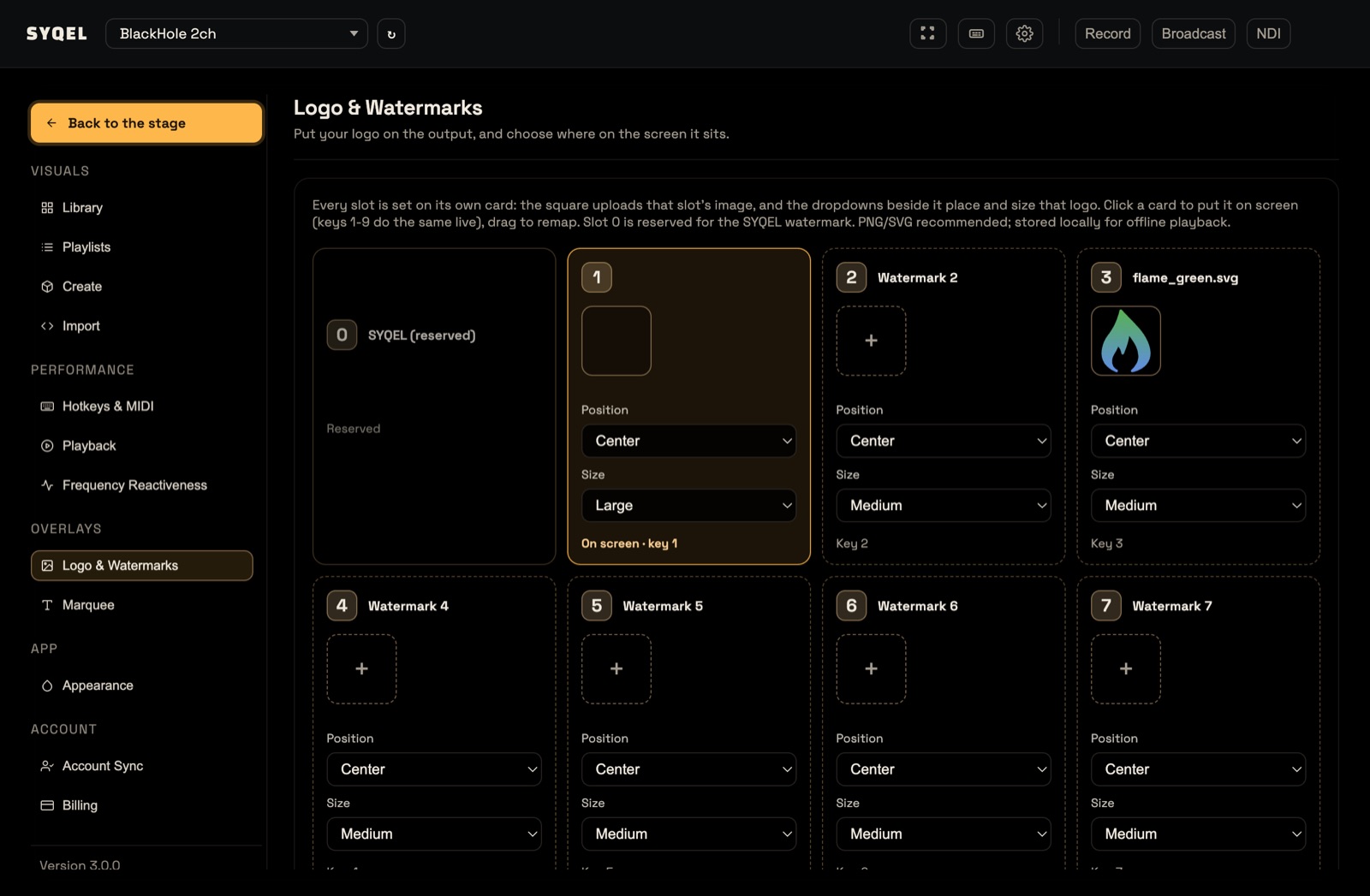
- Open Settings › Logo & Watermarks. Slot 0 is SYQEL (reserved); Watermark 1 to Watermark 9 are yours.
- Click the + square on a card and pick an image, or drag one onto it.
- Choose its Position (Top Left, Top, Top Right, Left, Center, Right, Bottom Left, Bottom or Bottom Right) and Size (Small, Medium or Large).
- Click the card to put that logo on screen. Its footer then reads On screen · key N.
There is no Save button: changes apply as you make them. Drag a card onto another slot to reorder your logos.
On the web, uploaded logos are kept in this browser. Using another browser or computer means uploading them again there.
Switch logos live
- 1–9 switch to that slot’s logo.
- L shows or hides your logo.
Tip: a high-resolution PNG or SVG with a transparent background looks best.
Did this help? If you’re still stuck, email support@syqel.com.