Creating a visual with AI
Describe a visual in plain words and SYQEL generates it for you, ready to react to your music.
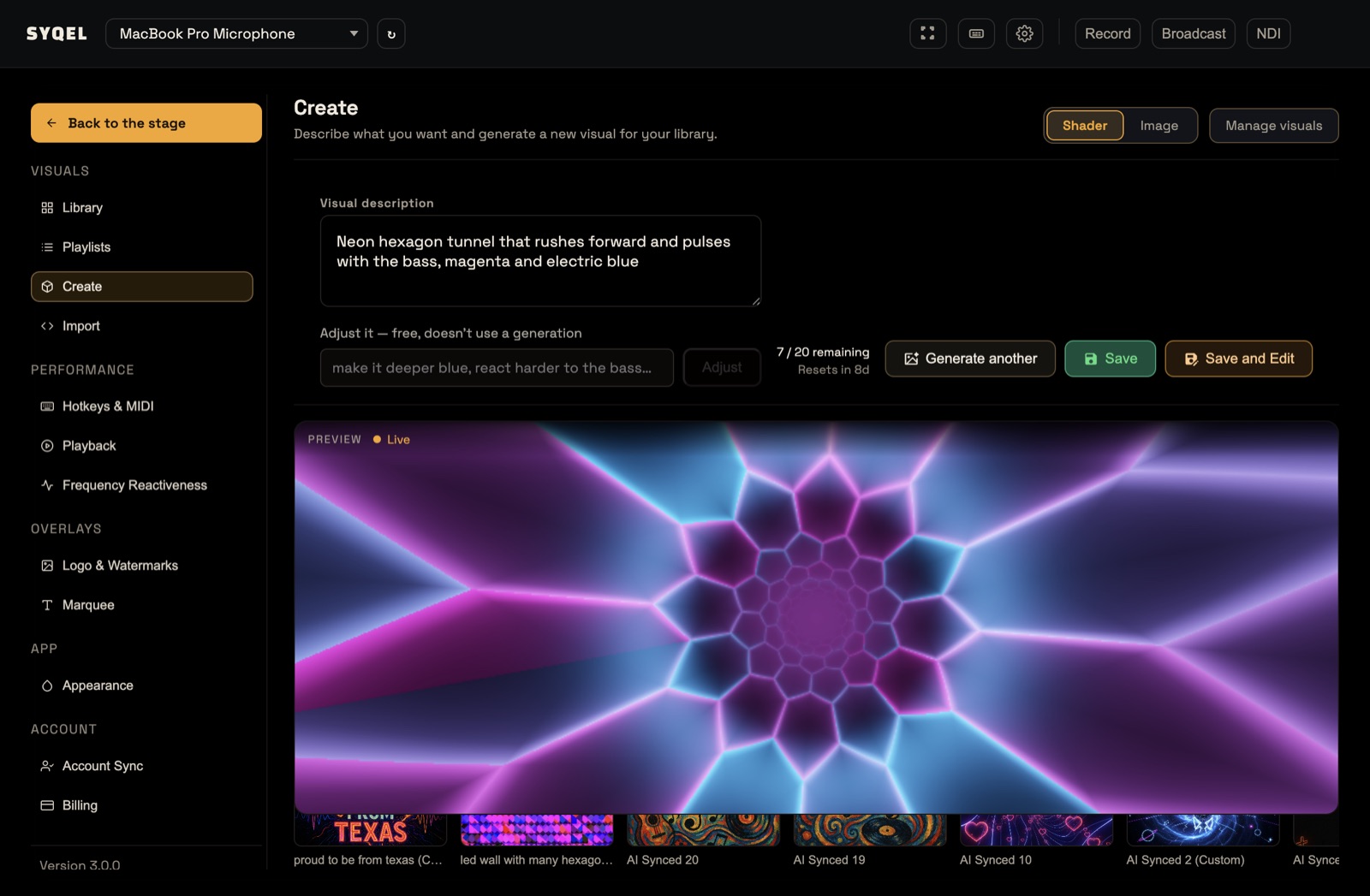
- Open Settings (the cog in the top bar) and choose Create.
- Pick Shader (an animated, sound-driven visual) or Image (an AI picture brought to life by your audio) at the top.
- Type what you want in Visual description, for example “A cyberpunk city grid that pulses with neon blue light”.
- For an Image, choose an Aspect ratio (1:1, 4:3, 16:9, 9:16 or 3:4) and an Art style (Neon, Cartoon, Pixel Art, Painting, Realistic, Abstract or Geometric).
- Click Generate. This can take a little while.
- Watch the result in the preview. Play some music so you can see it react.
- Click Save to keep it in your Library, or Save and Edit to save it and open it in the Library, where you can tune it and add it to a playlist.
Not quite right? Click Generate another. For a Shader, you can also type a change under Adjust it (for example “make it deeper blue, react harder to the bass”) and click Adjust. Adjusting does not use a generation.
Your generations
The counter on the Create screen shows how many you have left (“N / L remaining”) and, on a paid plan, when it resets. Shaders and Images share the same allowance.
- Free: 2 generations in total
- Pro: 10 a month
- Deluxe: 20 a month
- Elite: 75 a month
- Gig Pass: 5, for 24 hours
A generation that fails (it took too long or came out broken) is not counted. When you run out, Generate shows your upgrade options. See plans.
Your recent creations are listed under Recently generated. Click one to open it in the Library. See Editing a visual to fine-tune it.
Did this help? If you’re still stuck, email support@syqel.com.