Editing a visual
Every visual can be tuned from the Library.
- Open Settings (the cog in the top bar) and choose Library.
- Search for the visual, or narrow the list with the feed chips, and click it. It plays, and its details open on the right.
- Play some music, then use the controls under Adjust.
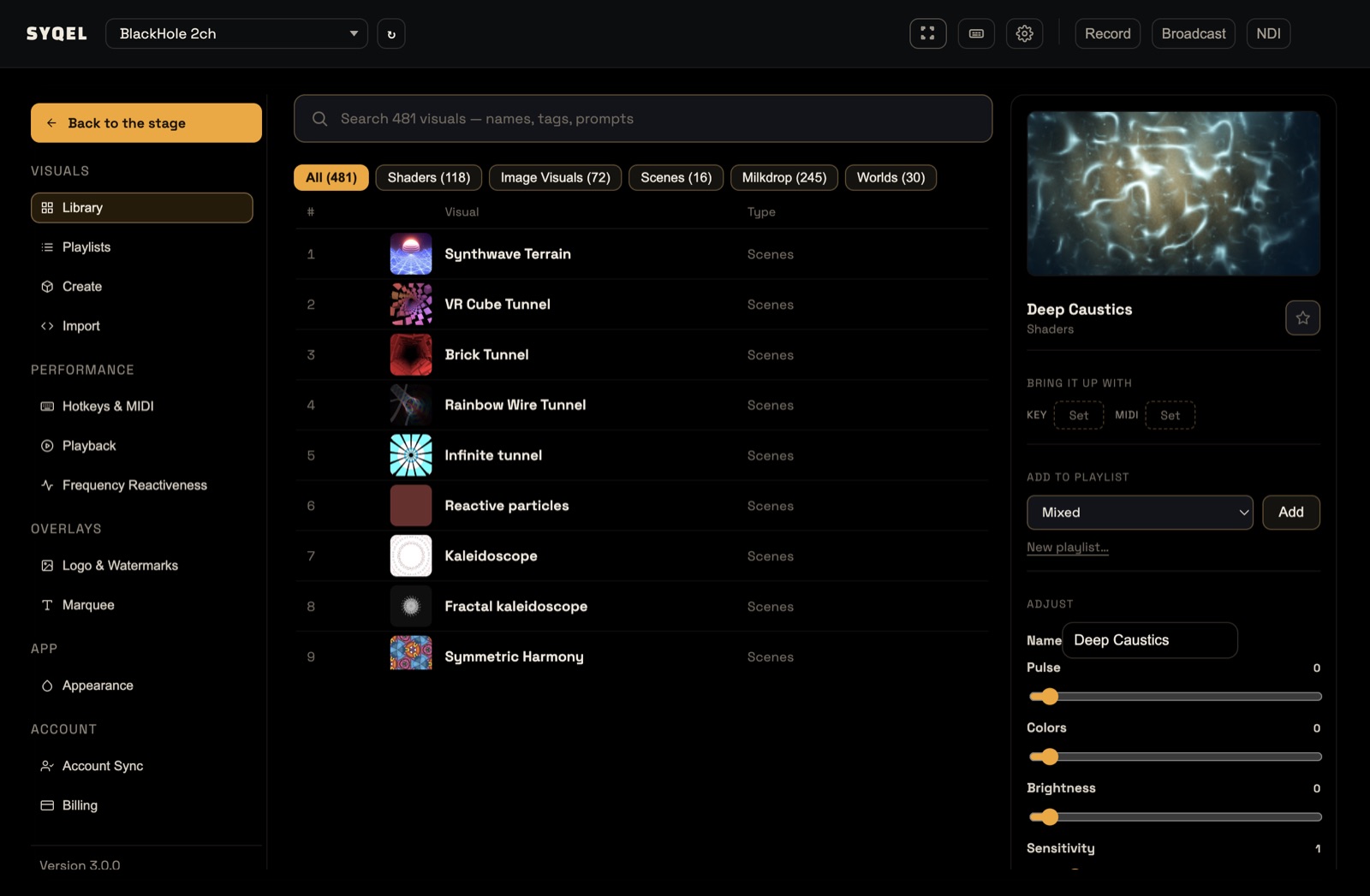
Image Visuals and Shaders
You get a Name field and four sliders:
- Pulse: adds a pulsing zoom
- Colors: adds a color effect
- Brightness: adds a brightness effect
- Sensitivity: how strongly the visual responds to the audio
Once you move a slider, two buttons appear:
- Save changes updates the visual itself (for visuals you created or imported).
- Save as a copy keeps the original and adds your version to the Library.
Visuals that come with SYQEL are refreshed each time the app starts, so your version of one of them is always saved as a copy.
Milkdrop, Scenes and Worlds
These have a Sensitivity slider only. It is kept as soon as you move it, so there is nothing to save.
Also in the panel
The same panel lets you star the visual for Favourites, give it a key or MIDI pad under Bring it up with, and add it to a playlist under Add to playlist. See Adding a visual to a playlist.
Did this help? If you’re still stuck, email support@syqel.com.