Setting up the window source
To stream or record SYQEL from your browser, capture the browser window in OBS.
- Open vj.syqel.com in its own browser window, sign in, and pick your audio source in the top bar.
- In OBS, under Sources, click + and choose Window Capture. On a Mac, recent OBS versions call it macOS Screen Capture; set it to capture a window.
- Choose the browser window running SYQEL and click OK.
- Back in SYQEL, press H to hide the top bar and the controls under the stage, so only the visuals show. Use the fullscreen icon in the top bar if you want the window to fill the screen.
- In OBS, right-click the source → Transform → Fit to screen. If the browser’s tabs or address bar still show, crop them with Alt-drag (Option-drag on Mac) on the source’s edge.
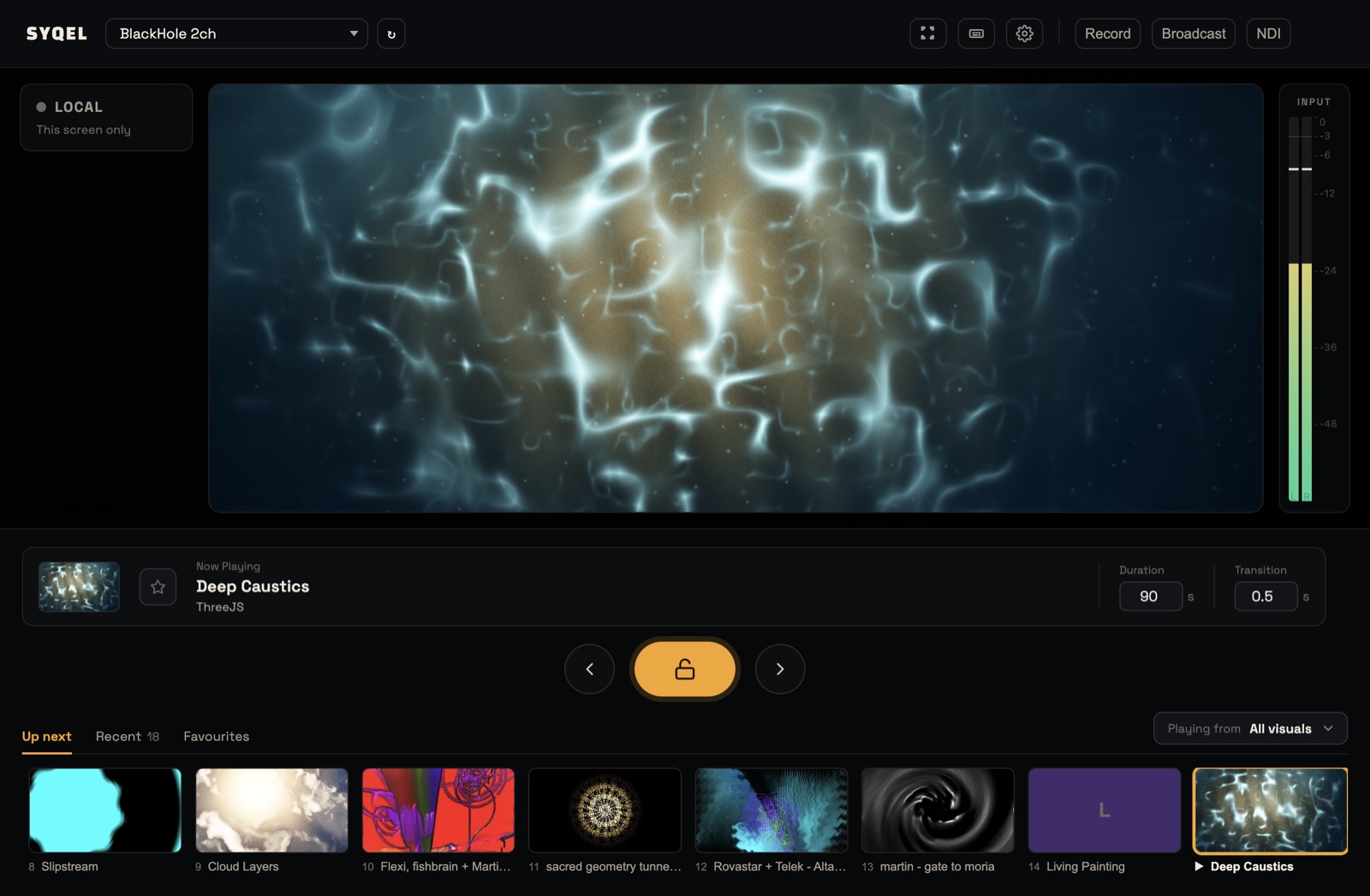
Press H again to bring the controls back. Next, give OBS the sound: Setting up OBS audio source.
Did this help? If you’re still stuck, email support@syqel.com.