Importing Milkdrop Visuals
You can add your own Milkdrop presets to SYQEL Desktop. They join the Milkdrop feed and are stored on your computer, so they play offline.
SYQEL imports presets in the .json format used by Butterchurn, the WebGL version of Milkdrop that SYQEL plays them with. Classic .milk files are not supported right now, so convert them to .json first.
Import a folder of presets
- Put your
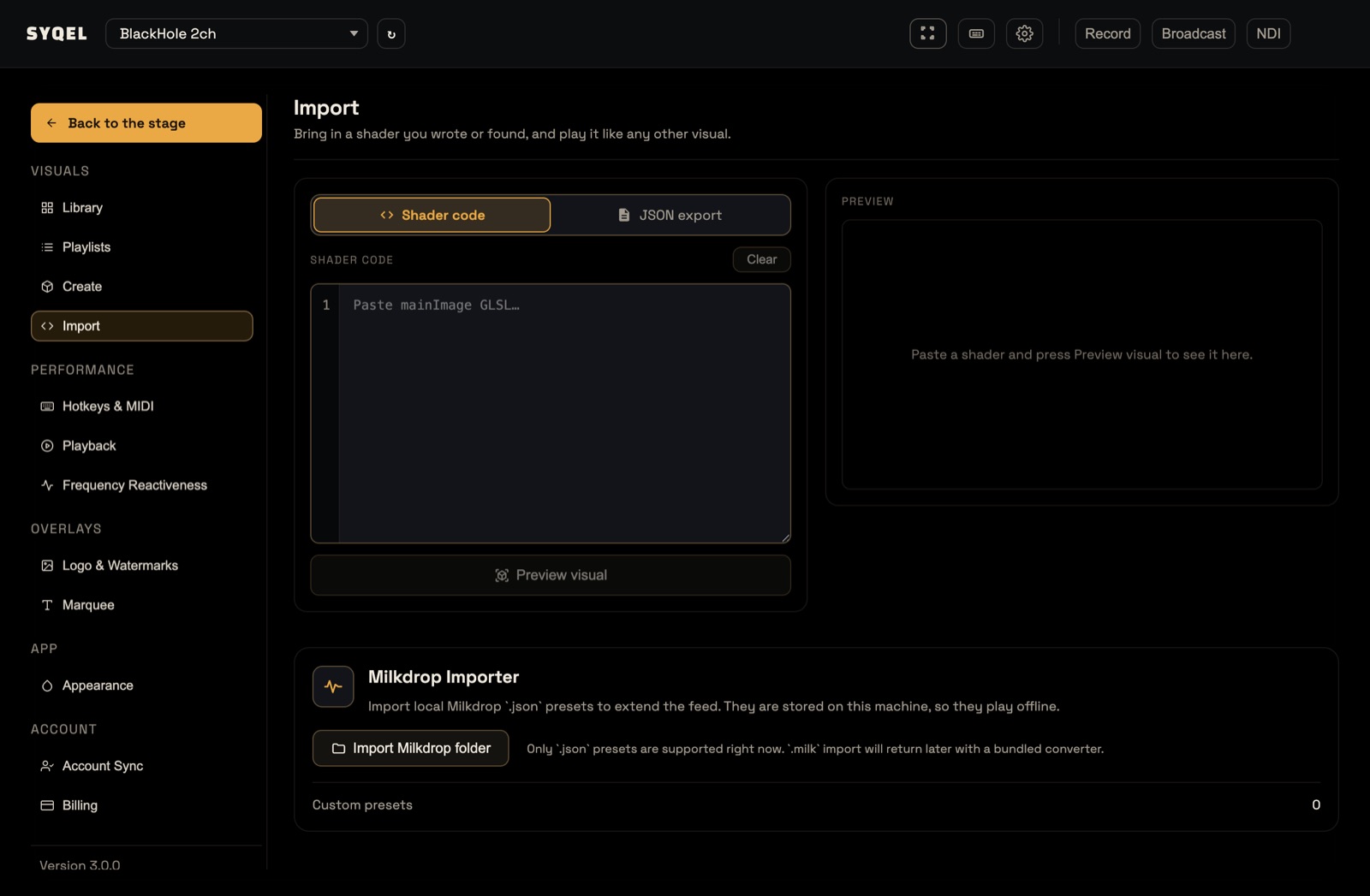
.jsonpresets in one folder. Subfolders are fine. - Open Settings (the cog in the top bar) and choose Import.
- In the Milkdrop Importer card, click Import Milkdrop folder.
- Choose the folder and confirm.
SYQEL reports how many presets it imported, and the Custom presets count on the card goes up. If it says “No JSON preset files found.”, the folder had no .json files in it.
Play them
Imported presets play as part of the Milkdrop feed. Click Playing from in the performance bar and pick Milkdrop under Feeds, or All visuals to mix them in with everything else.
Good to know
- Imported presets stay on the computer you imported them on. They don’t sync to your other machines, so import the folder on each one.
- The web app can’t import Milkdrop folders. The button is there but locked, because a browser can’t read a folder of files this way.
Did this help? If you’re still stuck, email support@syqel.com.