Editing a playlist
Open Settings (the cog in the top bar), choose Playlists, and click a playlist under Your playlists. Changes save as you make them.
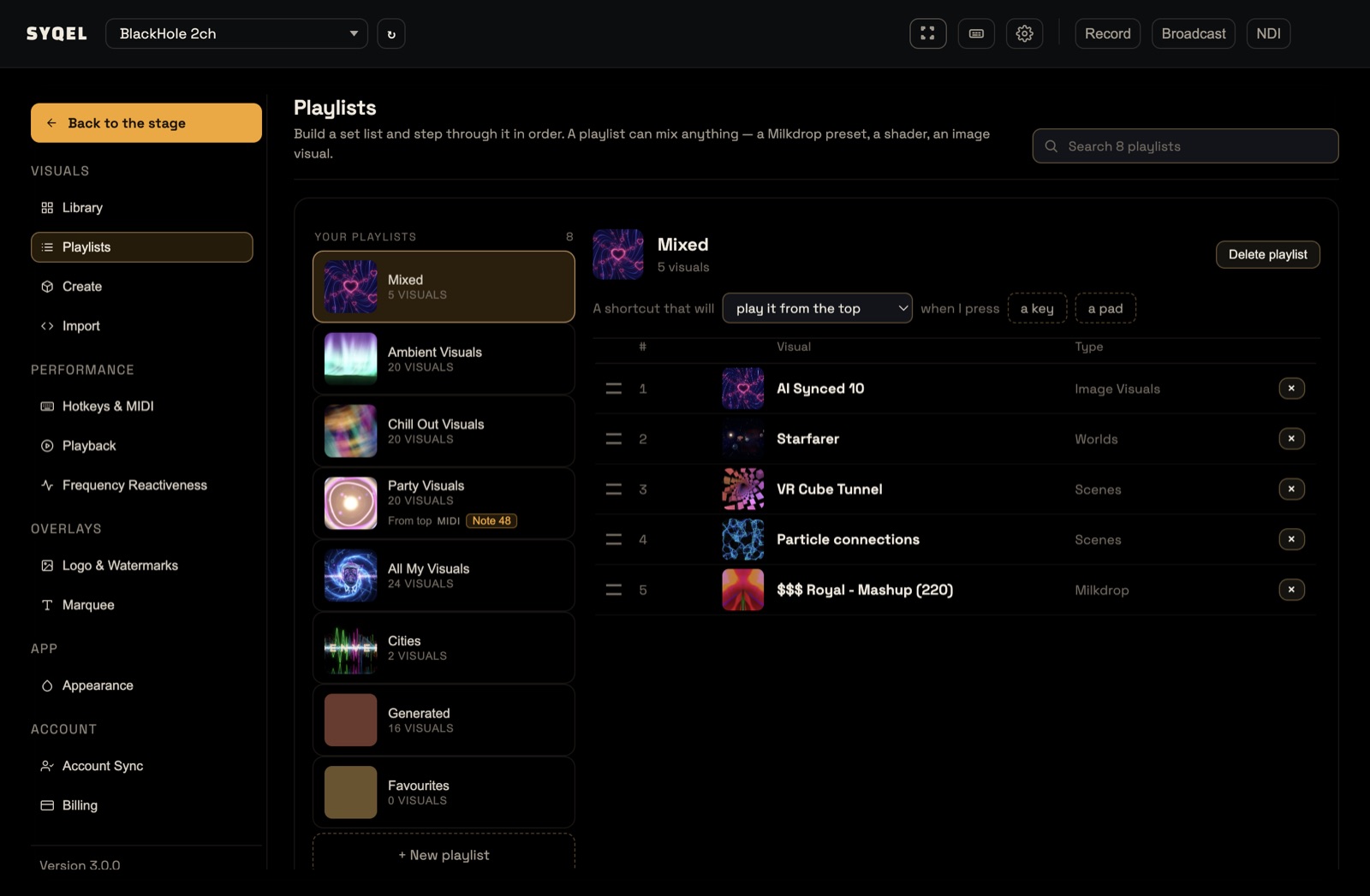
What you can do
- Preview a visual: click it. The preview does not change what is on your output.
- Reorder: drag a visual by its handle to a new position. The playlist plays in this order.
- Remove a visual: click × on its row. This only takes it out of the playlist; it stays in your Library.
- Add visuals: go to Settings › Library, select a visual and click Add under Add to playlist. See Adding a visual to a playlist.
- Give it a shortcut: build the sentence “A shortcut that will play it from the top / resume where it left off when I press a key / a pad”, then press the key or hit the pad. Your shortcuts are listed as From the top or Resume, each with a Remove button. A playlist can have more than one.
- Delete the playlist: click Delete playlist, then Delete to confirm (or Keep it to back out). The visuals stay in your Library.
If some visuals are missing from this computer, the playlist shows “N no longer available, and skipped”. An Account Sync brings back any your account still has.
Playing it
There is no Play button on this screen. To play a playlist, click Playing from in the performance bar and pick it under Playlists, or press its shortcut.
Did this help? If you’re still stuck, email support@syqel.com.